

The Quant's Toolkit: Algorithmic Trading in Python
An End-to-End Pipeline for Market Analysis, Risk Assessment, and LSTM Price Forecasting

Download source code using the button at the end of this article!
The modern quantitative trading landscape relies on the ability to transform raw market noise into actionable signals. In this comprehensive walkthrough, we bridge the gap between financial theory and data science by constructing an end-to-end analytical pipeline in Python. Whether you are an aspiring algorithmic trader or a data professional looking to apply machine learning to the stock market, this guide will take you step-by-step through the process of ingesting, exploring, and modeling equity time series using real-world data from top technology giants.
As you read through this guide, expect to dive deep into the core tools of the quant trade. We start by leveraging pandas and yfinance to pull historical market quotes, moving quickly into exploratory data analysis to uncover hidden market dynamics. You will learn how to compute technical indicators like moving averages, assess asset volatility through daily return distributions, and visualize complex cross-asset correlations using seaborn. This foundational analysis is crucial for understanding the risk-reward profiles of individual assets and identifying how they co-move before you attempt to build predictive algorithms.
Finally, we transition from historical analysis to predictive forecasting by engineering our cleaned data for deep learning. You will see exactly how to prepare time-series sequences, normalize your inputs, and architect a Long Short-Term Memory (LSTM) neural network using Keras. By the end of this article, you will have trained a predictive model on Apple’s historical price action, evaluated its performance against a held-out validation set, and built a practical framework that you can immediately adapt to test your own algorithmic trading strategies.
In this section we’ll go over how to handle requesting stock information with pandas, and how to analyze basic attributes of a stock.
!pip install -q yfinanceOutput
[stdout]
 [31mERROR: pip’s dependency resolver does not currently take into account all the packages that are installed. This behaviour is the source of the following dependency conflicts.
beatrix-jupyterlab 3.1.7 requires google-cloud-bigquery-storage, which is not installed.
pandas-profiling 3.1.0 requires markupsafe~=2.0.1, but you have markupsafe 2.1.2 which is incompatible.
ibis-framework 2.1.1 requires importlib-metadata<5,>=4; python_version < “3.8”, but you have importlib-metadata 6.0.0 which is incompatible.
apache-beam 2.40.0 requires dill<0.3.2,>=0.3.1.1, but you have dill 0.3.6 which is incompatible.
apache-beam 2.40.0 requires pyarrow<8.0.0,>=0.15.1, but you have pyarrow 8.0.0 which is incompatible. [0m [31m
 [0m [33mWARNING: Running pip as the ‘root’ user can result in broken permissions and conflicting behaviour with the system package manager. It is recommended to use a virtual environment instead: https://pip.pypa.io/warnings/venv [0m [33m
 [0m
The cell serves as the notebook’s opener: it documents the analysis goals and guarantees a needed dependency is present so the rest of the end-to-end pipeline for ingesting, exploring, and modeling equity time series can run. The commented lines describe the scope â working with several technology stocks, using yfinance to fetch historical quotes, visualizing with Seaborn and Matplotlib, computing risk and derived time-series features, and ultimately training an LSTM via Keras to forecast closing prices â so a reader immediately understands why later cells perform data pulls, feature engineering, plotting, scaling, train/test splits, and model training. The single executable statement installs yfinance into the notebook environment quietly so the later use of yfinance (and the pandas_datareader override that other cells perform) will succeed at runtime. Compared with the similar cells that follow, which actually import libraries and download data, this cell focuses on environment setup and high-level intent rather than performing imports or data retrieval itself; it prepares the environment and frames the questions that the pipeline and the test_cleaned validation will address.
import pandas as pd
import numpy as np

import matplotlib.pyplot as plt
import seaborn as sns
sns.set_style('whitegrid')
plt.style.use("fivethirtyeight")
%matplotlib inline

# For reading stock data from yahoo
from pandas_datareader.data import DataReader
import yfinance as yf
from pandas_datareader import data as pdr

yf.pdr_override()

# For time stamps
from datetime import datetime


# The tech stocks we'll use for this analysis
tech_list = ['AAPL', 'GOOG', 'MSFT', 'AMZN']

# Set up End and Start times for data grab
tech_list = ['AAPL', 'GOOG', 'MSFT', 'AMZN']

end = datetime.now()
start = datetime(end.year - 1, end.month, end.day)

for stock in tech_list:
    globals()[stock] = yf.download(stock, start, end)


company_list = [AAPL, GOOG, MSFT, AMZN]
company_name = ["APPLE", "GOOGLE", "MICROSOFT", "AMAZON"]

for company, com_name in zip(company_list, company_name):
    company["company_name"] = com_name

df = pd.concat(company_list, axis=0)
df.tail(10)
Output
[stdout]
[*********************100%***********************]  1 of 1 completed
[*********************100%***********************]  1 of 1 completed
[*********************100%***********************]  1 of 1 completed
[*********************100%***********************]  1 of 1 completed
Open High Low Close Adj Close Volume company_name Date 2023-01-17 00:00:00-05:00 98.680000 98.889999 95.730003 96.050003 96.050003 72755000 AMAZON 2023-01-18 00:00:00-05:00 97.250000 99.320000 95.379997 95.459999 95.459999 79570400 AMAZON 2023-01-19 00:00:00-05:00 94.739998 95.440002 92.860001 93.680000 93.680000 69002700 AMAZON 2023-01-20 00:00:00-05:00 93.860001 97.349998 93.199997 97.250000 97.250000 67307100 AMAZON 2023-01-23 00:00:00-05:00 97.559998 97.779999 95.860001 97.519997 97.519997 76501100 AMAZON 2023-01-24 00:00:00-05:00 96.930000 98.089996 96.000000 96.320000 96.320000 66929500 AMAZON 2023-01-25 00:00:00-05:00 92.559998 97.239998 91.519997 97.180000 97.180000 94261600 AMAZON 2023-01-26 00:00:00-05:00 98.239998 99.489998 96.919998 99.220001 99.220001 68523600 AMAZON 2023-01-27 00:00:00-05:00 99.529999 103.489998 99.529999 102.239998 102.239998 87678100 AMAZON 2023-01-30 00:00:00-05:00 101.089996 101.739998 99.010002 100.550003 100.550003 70566100 AMAZON
Bringing pandas into the namespace under the alias pd makes the notebook’s primary tabular-data API available for every subsequent step of the pipeline: ingesting time series from yfinance/pandas_datareader, shaping and annotating those results as DataFrame objects, concatenating the per-ticker frames into one long table, computing derived series such as percentage returns, and producing the small previews used for sanity checks. In this notebook pandas is the workhorse for in-memory representation and transformation of market data: the yf/pdr grab returns pandas DataFrame objects that the code then augments by adding a company_name column, combines with pandas.concat, slices and inspects with methods like tail, and feeds into analytic functions such as pct_change to build the features the LSTM will consume. Other cells that call pandas_datareader or use pdr.get_data_yahoo rely on the same pandas types, so importing pandas as pd here ensures all downstream operationsâmerging multiple ticker frames, calculating rolling statistics, and preparing train/test splitsâuse the consistent, familiar DataFrame/Series API throughout the notebook.
Reviewing the content of our data, we can see that the data is numeric and the date is the index of the data. Notice also that weekends are missing from the records.
Quick note: Using globals() is a sloppy way of setting the DataFrame names, but it’s simple. Now we have our data, let’s perform some basic data analysis and check our data.
Descriptive Statistics about the Data
.describe() generates descriptive statistics. Descriptive statistics include those that summarize the central tendency, dispersion, and shape of a datasetâs distribution, excluding NaN values.
Analyzes both numeric and object series, as well as DataFrame column sets of mixed data types. The output will vary depending on what is provided. Refer to the notes below for more detail.
# Summary Stats
AAPL.describe()
Output
Open High Low Close Adj Close Volume count 251.000000 251.000000 251.000000 251.000000 251.000000 2.510000e+02 mean 152.117251 154.227052 150.098406 152.240797 151.861737 8.545738e+07 std 13.239204 13.124055 13.268053 13.255593 13.057870 2.257398e+07 min 126.010002 127.769997 124.169998 125.019997 125.019997 3.519590e+07 25% 142.110001 143.854996 139.949997 142.464996 142.190201 7.027710e+07 50% 150.089996 151.990005 148.199997 150.649994 150.400497 8.100050e+07 75% 163.434998 165.835007 160.879997 163.629997 163.200417 9.374540e+07 max 178.550003 179.610001 176.699997 178.960007 178.154037 1.826020e+08
After we fetched the AAPL time-series into a DataFrame using yfinance/pandas_datareader earlier, the notebook invokes the DataFrame.describe method to produce a compact summary of the numeric columns so we can validate the dataset before modeling. describe returns the row count per column along with measures of central tendency and spread â mean and standard deviation â and the min, max and the 25th/50th/75th percentiles, excluding any NaN values; because the DataFrame uses the trading date as its index, the output also makes it obvious that weekend rows are absent by showing counts lower than calendar days. This summary is used to confirm that the columns are numeric and that there arenât glaring anomalies (such as unexpected zeros, extreme outliers, or missing data patterns) that would break downstream steps like scaling, train/test splitting and LSTM training. describe complements the earlier use of DataFrame.info, which inspected dtypes and non-null counts; together these two checks establish that the data ingestion and basic cleaning succeeded and provide the empirical values that the test_cleaned validation will compare against.
We have only 255 records in one year because weekends are not included in the data.
Information About the Data
.info() method prints information about a DataFrame including the index dtype and columns, non-null values, and memory usage.
# General info
AAPL.info()
Output
[stdout]
<class ‘pandas.core.frame.DataFrame’>
DatetimeIndex: 251 entries, 2022-01-31 00:00:00-05:00 to 2023-01-30 00:00:00-05:00
Data columns (total 7 columns):
 #   Column        Non-Null Count  Dtype
---  ------        --------------  -----
 0   Open          251 non-null    float64
 1   High          251 non-null    float64
 2   Low           251 non-null    float64
 3   Close         251 non-null    float64
 4   Adj Close     251 non-null    float64
 5   Volume        251 non-null    int64
 6   company_name  251 non-null    object
dtypes: float64(5), int64(1), object(1)
memory usage: 23.8+ KB
Within the ingestion-and-prep stage of the notebook, the info method invoked on the AAPL DataFrame is a quick structural sanity check of the dataset that was fetched from the online source earlier via the pandas-datareader call. It prints the index dtype, each columnâs dtype, non-null counts for every column, and memory usage so you can confirm that the index is a datetime-like index, that numeric price and volume columns are present, and that there are no unexpected nulls before you proceed to feature engineering and scaling. This is a non-mutating, diagnostic call whose output helps validate the same assumptions that the downstream steps rely on â for example, that the Close column exists before creating the filtered Close-only series and that the time axis skips weekends (hence about 255 trading-day records in a year). The info-style check complements the describe-style check elsewhere in the notebook by focusing on structure and completeness rather than on summary statistics, and its results are exactly the kind of invariants that the test_cleaned checks will be trying to enforce.
Closing Price
The closing price is the last price at which the stock is traded during the regular trading day. A stockâs closing price is the standard benchmark used by investors to track its performance over time.
# Let's see a historical view of the closing price
plt.figure(figsize=(15, 10))
plt.subplots_adjust(top=1.25, bottom=1.2)

for i, company in enumerate(company_list, 1):
    plt.subplot(2, 2, i)
    company['Adj Close'].plot()
    plt.ylabel('Adj Close')
    plt.xlabel(None)
    plt.title(f"Closing Price of {tech_list[i - 1]}")

plt.tight_layout()
Output
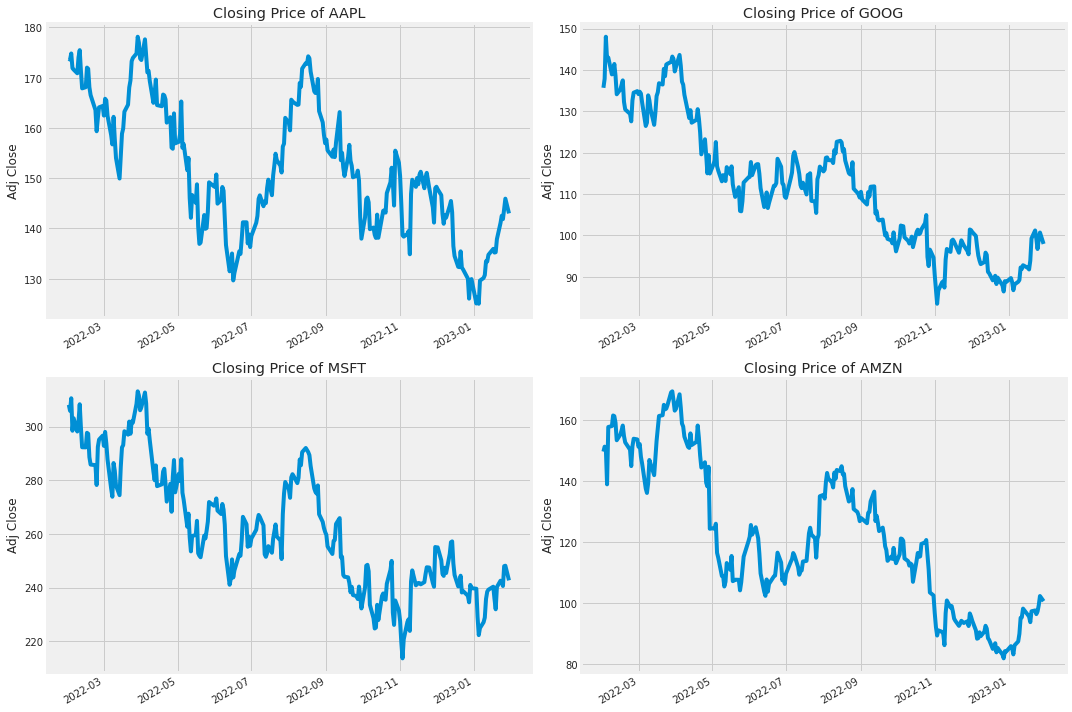
plt.figure initializes a fresh matplotlib drawing canvas sized to give plenty of room for multiple plots, so the notebook can present four separate adjusted-closing price series without cramped axes or overlapping text. After creating that canvas, the cell tweaks the subplot spacing, then iterates over company_list to place each company’s adjusted close series into one cell of a two-by-two subplot grid; the loop handles which subplot index to target, pulls the ‘Adj Close’ column from each company DataFrame as the plotted series, and sets the y-label and a title drawn from tech_list so each plot is clearly identified. The subsequent layout call tightens and corrects spacing so axis labels and titles donât collide. In the pipeline this is an exploratory visual check: the figure makes it easy to inspect historical closing behavior across tickers and serves as a visual validation step for test_cleaned by revealing any obvious gaps, misalignments, or unexpected transformations in the cleaned adjusted-close data before feature engineering and LSTM training. This follows the same overall pattern used elsewhereâcreate a sized figure, add subplots, plot series, and adjust spacingâbut chooses a larger, taller canvas because it renders four time series with axis labels and titles rather than a single-line plot or denser heatmaps.
Volume of Sales
Volume is the amount of an asset or security that changes hands over some period of time, often over the course of a day. For instance, the stock trading volume would refer to the number of shares of security traded between its daily open and close. Trading volume, and changes to volume over the course of time, are important inputs for technical traders.
# Now let's plot the total volume of stock being traded each day
plt.figure(figsize=(15, 10))
plt.subplots_adjust(top=1.25, bottom=1.2)

for i, company in enumerate(company_list, 1):
    plt.subplot(2, 2, i)
    company['Volume'].plot()
    plt.ylabel('Volume')
    plt.xlabel(None)
    plt.title(f"Sales Volume for {tech_list[i - 1]}")

plt.tight_layout()
Output
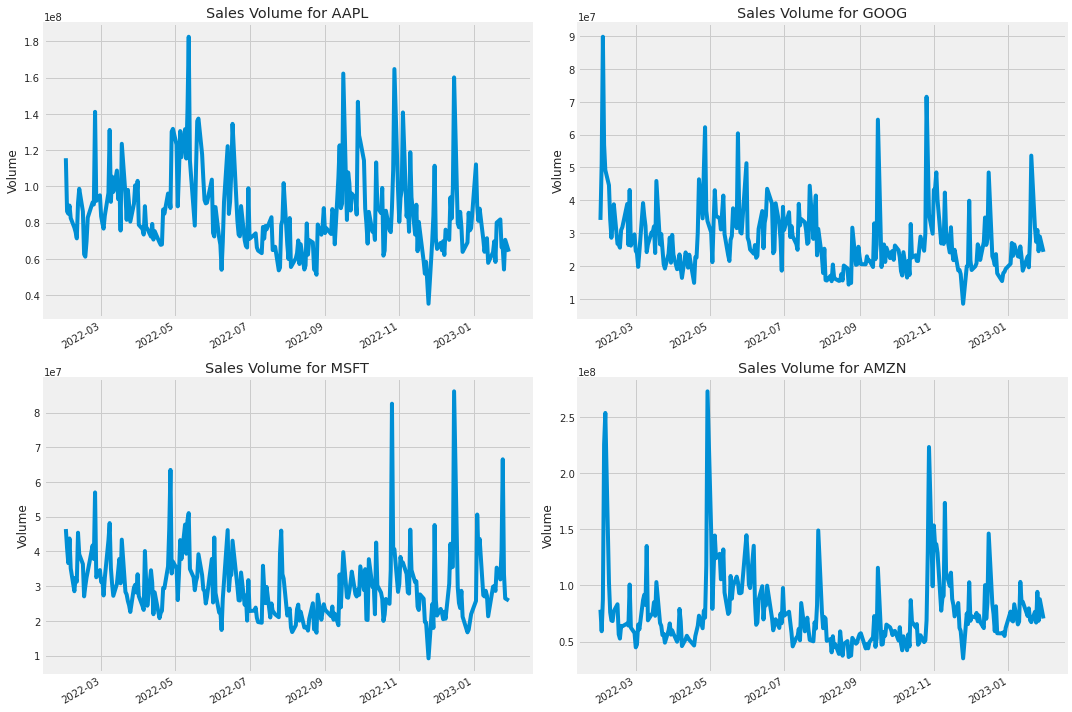
Within the exploratory visualization stage of the notebook that produces diagnostic plots used to inform feature engineering for the LSTM, the figure-creation step sets up a large, 15âbyâ10 inch plotting canvas so the subsequent 2-by-2 grid of subplots can render four time-series without cramped axes or overlapping text. That canvas works together with the subplot-adjustment step to increase the top and bottom margins before the loop iterates over company_list, drawing each company’s daily volume series and annotating each panel using names from tech_list; tight layout is applied at the end to clean up spacing. This pattern is the same one used for the closing-price visualization (which also requested the same sized canvas) and contrasts with the histogram view that used a slightly smaller canvas because it displays distributions rather than long time-series; in the pipeline the large figure call is therefore a deliberate layout choice to make the volume time-series readable and comparable across the four securities.
Now that we’ve seen the visualizations for the closing price and the volume traded each day, let’s go ahead and caculate the moving average for the stock.
2. What was the moving average of the various stocks?
The moving average (MA) is a simple technical analysis tool that smooths out price data by creating a constantly updated average price. The average is taken over a specific period of time, like 10 days, 20 minutes, 30 weeks, or any time period the trader chooses.
ma_day = [10, 20, 50]

for ma in ma_day:
    for company in company_list:
        column_name = f"MA for {ma} days"
        company[column_name] = company['Adj Close'].rolling(ma).mean()


fig, axes = plt.subplots(nrows=2, ncols=2)
fig.set_figheight(10)
fig.set_figwidth(15)

AAPL[['Adj Close', 'MA for 10 days', 'MA for 20 days', 'MA for 50 days']].plot(ax=axes[0,0])
axes[0,0].set_title('APPLE')

GOOG[['Adj Close', 'MA for 10 days', 'MA for 20 days', 'MA for 50 days']].plot(ax=axes[0,1])
axes[0,1].set_title('GOOGLE')

MSFT[['Adj Close', 'MA for 10 days', 'MA for 20 days', 'MA for 50 days']].plot(ax=axes[1,0])
axes[1,0].set_title('MICROSOFT')

AMZN[['Adj Close', 'MA for 10 days', 'MA for 20 days', 'MA for 50 days']].plot(ax=axes[1,1])
axes[1,1].set_title('AMAZON')

fig.tight_layout()
Output
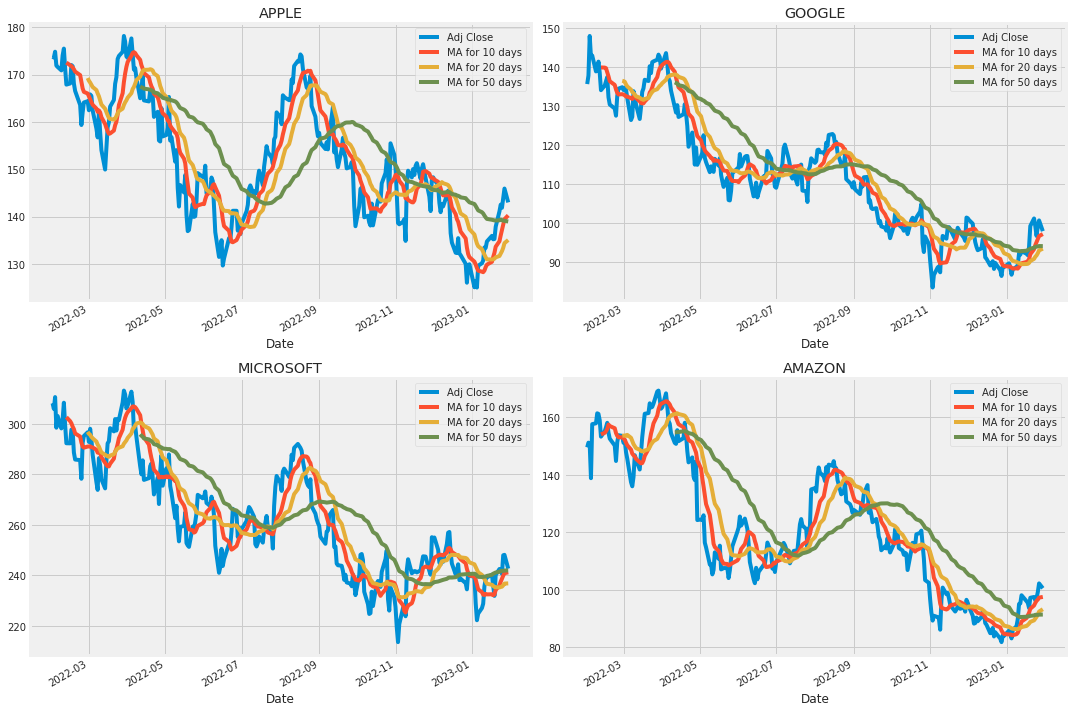
ma_day is a small configuration variable that lists the three moving-average window lengths â 10, 20 and 50 days â that the notebook will compute as part of feature engineering. Those specific windows are chosen because they are common short- and medium-term smoothing horizons in technical analysis: 10 and 20 capture shorter trends without too much noise, while 50 gives a broader trend signal. The notebook iterates over ma_day and over company_list to compute a rolling mean of the ‘Adj Close’ Series for each company by invoking pandas’ rolling and mean methods and then writes the result back into each company DataFrame as a new column labeled with the window (the same pattern used earlier when the loop added a Daily Return column via pct_change). Those derived MA columns are then plotted in the four-company subplot grid that was prepared with plt.figure(figsize=(15, 10)), and they become part of the cleaned and enriched dataset that feeds the scaling, train/test split, and ultimately the LSTM training. For downstream checks such as test_cleaned, the presence and correctness of these MA columns is an important indicator that the feature-creation step of the ingestion-and-prep stage completed as intended
We see in the graph that the best values to measure the moving average are 10 and 20 days because we still capture trends in the data without noise.
3. What was the daily return of the stock on average?
Now that we’ve done some baseline analysis, let’s go ahead and dive a little deeper. We’re now going to analyze the risk of the stock. In order to do so we’ll need to take a closer look at the daily changes of the stock, and not just its absolute value. Let’s go ahead and use pandas to retrieve teh daily returns for the Apple stock.
# We'll use pct_change to find the percent change for each day
for company in company_list:
    company['Daily Return'] = company['Adj Close'].pct_change()

# Then we'll plot the daily return percentage
fig, axes = plt.subplots(nrows=2, ncols=2)
fig.set_figheight(10)
fig.set_figwidth(15)

AAPL['Daily Return'].plot(ax=axes[0,0], legend=True, linestyle='--', marker='o')
axes[0,0].set_title('APPLE')

GOOG['Daily Return'].plot(ax=axes[0,1], legend=True, linestyle='--', marker='o')
axes[0,1].set_title('GOOGLE')

MSFT['Daily Return'].plot(ax=axes[1,0], legend=True, linestyle='--', marker='o')
axes[1,0].set_title('MICROSOFT')

AMZN['Daily Return'].plot(ax=axes[1,1], legend=True, linestyle='--', marker='o')
axes[1,1].set_title('AMAZON')

fig.tight_layout()
Output
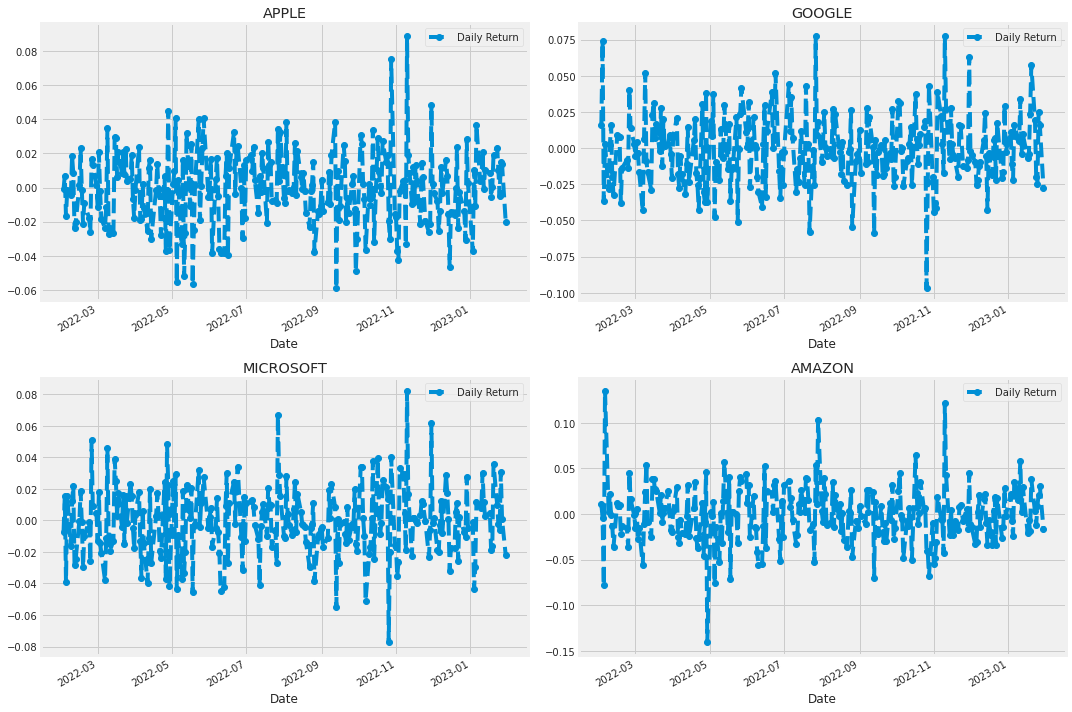
Within the notebook’s ingestion-and-prep stage, the loop that iterates over company_list converts raw price series into a basic risk feature by computing each DataFrame’s daily percent change from the adjusted close series and storing that result in a new column named Daily Return; company_list contains the per-ticker DataFrames assembled earlier from the remote data source. Conceptually, pct_change is used to transform level prices into day-to-day percentage movements so the analysis can focus on returns and volatility rather than absolute price, and the first row for each DataFrame will be a missing value because there is no prior day to compare. Immediately after populating Daily Return for every ticker, the plotting block creates a 2-by-2 axes grid using plt.subplots, sizes the figure, and then maps each ticker’s Daily Return series to a specific subplot (AAPL, GOOG, MSFT, AMZN), applying a consistent line style, markers, legends and titles before tightening the layout for presentation. This loop follows the same iteration pattern seen elsewhere in the notebookâsuch as the histogram loop that enumerates company_list to place histograms into subplot slots and the moving-average loop that nests iterations to compute rolling statisticsâbut it differs in purpose and operation: here the transformation is a percent-change feature assignment (single-pass over company_list) rather than computing moving averages or drawing per-company distributions. In the pipeline toward test_cleaned, adding Daily Return is an essential feature-engineering step that downstream visualizations, correlation analyses and risk-quantification logic (and therefore the tests that validate the cleaned dataset) rely upon.
Great, now let’s get an overall look at the average daily return using a histogram. We’ll use seaborn to create both a histogram and kde plot on the same figure.
plt.figure(figsize=(12, 9))

for i, company in enumerate(company_list, 1):
    plt.subplot(2, 2, i)
    company['Daily Return'].hist(bins=50)
    plt.xlabel('Daily Return')
    plt.ylabel('Counts')
    plt.title(f'{company_name[i - 1]}')

plt.tight_layout()
Output
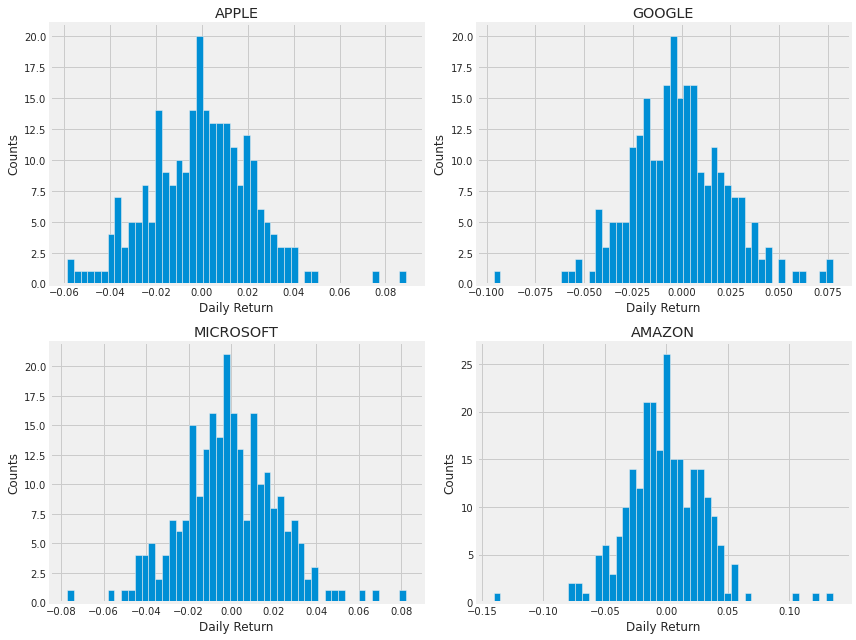
Within the exploratory analysis phase that follows the initial framing in gap_L47_47 and the dataset sanity check performed by AAPL.info(), the plt.figure call instantiates a new matplotlib drawing canvas sized to twelve by nine inches so there is ample room for multiple subplots showing return distributions. That canvas is the container into which the loop places a two-by-two grid of axes, and sizing it to twelve by nine ensures each companyâs Daily Return histogram has readable axis labels and titles without overlappingâsimilar in intent to the earlier plt.figure call that used a different canvas size when plotting adjusted-closing series, but tuned here for histogram layouts rather than time-series traces. This approach is a simpler, explicit layout compared with the seaborn PairGrid pattern used elsewhere, where seaborn manages a more complex multi-plot mapping; here the explicit figure sizing makes the four histograms consistent and legible, supporting the test_cleaned goal of visually validating the cleaned daily-return distributions before moving on to feature preparation and modeling.
4. What was the correlation between different stocks closing prices?
Correlation is a statistic that measures the degree to which two variables move in relation to each other which has a value that must fall between -1.0 and +1.0. Correlation measures association, but doesnât show if x causes y or vice versa â or if the association is caused by a third factor[1].
Now what if we wanted to analyze the returns of all the stocks in our list? Let’s go ahead and build a DataFrame with all the [’Close’] columns for each of the stocks dataframes.
# Grab all the closing prices for the tech stock list into one DataFrame

closing_df = pdr.get_data_yahoo(tech_list, start=start, end=end)['Adj Close']

# Make a new tech returns DataFrame
tech_rets = closing_df.pct_change()
tech_rets.head()
Output
[stdout]
[*********************100%***********************]  4 of 4 completed
AAPL AMZN GOOG MSFT Date 2022-01-31 00:00:00-05:00 NaN NaN NaN NaN 2022-02-01 00:00:00-05:00 -0.000973 0.010831 0.016065 -0.007139 2022-02-02 00:00:00-05:00 0.007044 -0.003843 0.073674 0.015222 2022-02-03 00:00:00-05:00 -0.016720 -0.078128 -0.036383 -0.038952 2022-02-04 00:00:00-05:00 -0.001679 0.135359 0.002562 0.015568
In the section that investigates how different stocks move together, the notebook uses pdr.get_data_yahoo to pull historical market data for every ticker in tech_list over the specified date range; by taking the Adjusted Close field from that result the notebook constructs closing_df, a date-indexed table where each column is a tickerâs adjusted closing price. The notebook then converts closing_df into percentage returns, producing tech_rets, and displays the head to quickly inspect the first few rows. This pair of data structures is exactly what the earlier narrative prompt gap_L50_50 intends to analyze: tech_rets feeds the pairwise regression and joint plots and the correlation heatmaps (the latter also compare closing_df.corr()) used to quantify co-movement, while closing_df preserves the price series for other comparisons. Unlike the prior single-symbol sanity check performed with AAPL.info(), the get_data_yahoo call aggregates multiple tickers into one consistent DataFrame suitable for cross-sectional correlation analysis and downstream preprocessing; those adjusted-close and returns tables then flow into the scaling, train/test splitting, and LSTM input preparation stages of the pipeline and are the core inputs that test_cleaned and subsequent validation steps will examine for correct ingestion and transformation.
Now we can compare the daily percentage return of two stocks to check how correlated. First let’s see a sotck compared to itself.
# Comparing Google to itself should show a perfectly linear relationship
sns.jointplot(x='GOOG', y='GOOG', data=tech_rets, kind='scatter', color='seagreen')
Output
<seaborn.axisgrid.JointGrid at 0x7f63e33d4990>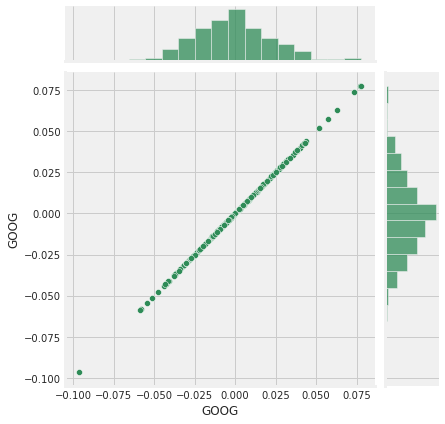
During the exploratory stage that consumes the derived returns table tech_rets, the call to seaborn.jointplot produces a focused twoâvariable visualization that compares Googleâs daily percentage return series to itself as a sanity check. It takes the GOOG column from tech_rets as both the x and y inputs and draws a scatter of paired daily returns together with the marginal distributions, so the plotted points should lie along a diagonal showing a perfectly linear, slopeâone relationship; the marginal plots let you inspect the return distribution for skewness or outliers. Because this notebook built tech_rets from the adjusted closing prices earlier, this selfâcomparison verifies that the cleaning and return calculation preserved identity and scale (a property test_cleaned is intended to exercise), whereas the similar jointplot comparing GOOG to MSFT reveals actual crossâseries correlation, sns.pairplot automates those pairwise comparisons for every ticker, and PairGrid offers manual control over upper/lower/diagonal facets; here the selfâjointplot is a minimal, focused check rendered onto the existing matplotlib canvas and styled (color chosen) for visual clarity.
# We'll use joinplot to compare the daily returns of Google and Microsoft
sns.jointplot(x='GOOG', y='MSFT', data=tech_rets, kind='scatter')
Output
<seaborn.axisgrid.JointGrid at 0x7f63dba49210>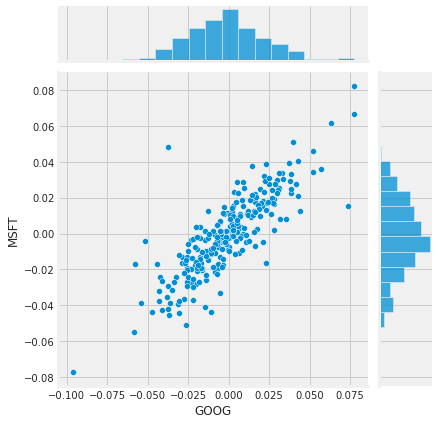
In the exploratory stage that precedes scaling and LSTM training, sns.jointplot is used to visualize the bivariate relationship between GOOG and MSFT daily returns drawn from tech_rets, where tech_rets was derived from the Adjusted Close series the notebook fetched earlier via pdr.get_data_yahoo and converted into percentage returns; the jointplot renders a central scatter depiction of GOOG versus MSFT returns while also showing the marginal distributions for each ticker so you can quickly assess linear correlation, dispersion, and outliers between those two series. Compared to the earlier example that plotted GOOG against itself to demonstrate a perfect linear relationship, jointplot focuses on a single pair instead of repeating comparisons across all tickers; compared with sns.pairplot, which produces a full matrix of pairwise relationships (optionally with regression fits), and PairGrid, which offers fineâgrained control over upper/lower/diagonal panels, jointplot is a compact, singleâpair diagnostic that makes it easy to validate the cleanliness and correlation structure of the return signals prior to the test_cleaned checks and the subsequent train/test split, scaling, and LSTM modeling steps.
So now we can see that if two stocks are perfectly (and positivley) correlated with each other a linear relationship bewteen its daily return values should occur.
Seaborn and pandas make it very easy to repeat this comparison analysis for every possible combination of stocks in our technology stock ticker list. We can use sns.pairplot() to automatically create this plot
# We can simply call pairplot on our DataFrame for an automatic visual analysis
# of all the comparisons

sns.pairplot(tech_rets, kind='reg')
Output
<seaborn.axisgrid.PairGrid at 0x7f63c3f952d0>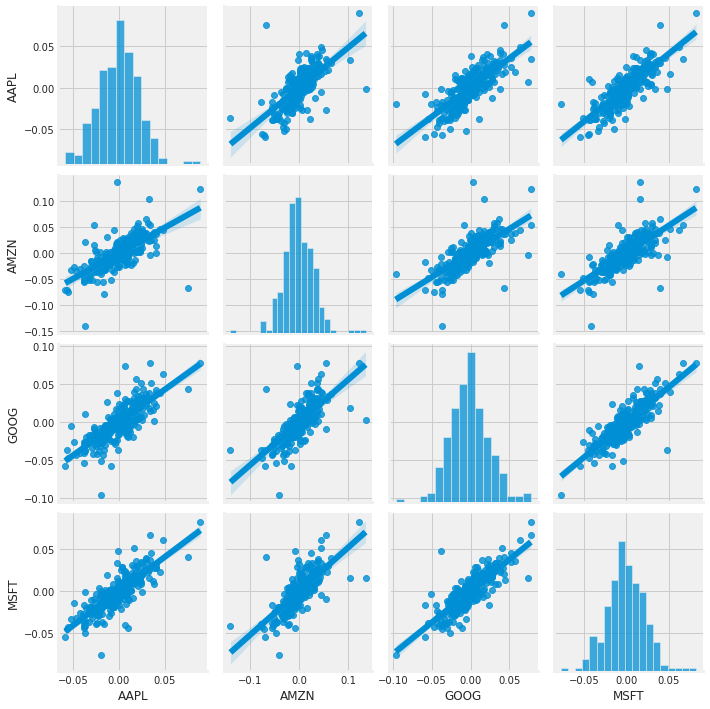
The call to sns.pairplot visualizes every pairwise relationship among the columns in tech_rets, the DataFrame of daily percentage returns you derived earlier from closing_df, by laying out a matrix of plots where each offâdiagonal cell shows the joint relationship for one pair of tickers and the diagonal shows each variableâs marginal distribution. By asking for a regression fit overlay, the offâdiagonal scatter plots include a fitted linear trend so you can quickly judge the strength and direction of linear relationships between returns; this is exactly the kind of quick, global check that complements the more controlled return_fig created with PairGrid (which we saw gives explicit control over upper, lower and diagonal panels). In the exploratory phase of the notebook that feeds into test_cleaned, the pairplot serves to surface obvious correlations (for example, the GoogleâAmazon relationship you flagged with jointplot) and to validate that the cleaned return features behave like timeâseries inputs youâd feed into the LSTM, while producing a single convenience figure rather than the multiâstep mapping used with PairGrid. The function consumes tech_rets and produces the visual output only; it does not alter the DataFrame, and it implicitly handles missing values when composing the pairwise plots.
Above we can see all the relationships on daily returns between all the stocks. A quick glance shows an interesting correlation between Google and Amazon daily returns. It might be interesting to investigate that individual comaprison.
While the simplicity of just calling sns.pairplot() is fantastic we can also use sns.PairGrid() for full control of the figure, including what kind of plots go in the diagonal, the upper triangle, and the lower triangle. Below is an example of utilizing the full power of seaborn to achieve this result.
# Set up our figure by naming it returns_fig, call PairPLot on the DataFrame
return_fig = sns.PairGrid(tech_rets.dropna())

# Using map_upper we can specify what the upper triangle will look like.
return_fig.map_upper(plt.scatter, color='purple')

# We can also define the lower triangle in the figure, inclufing the plot type (kde)
# or the color map (BluePurple)
return_fig.map_lower(sns.kdeplot, cmap='cool_d')

# Finally we'll define the diagonal as a series of histogram plots of the daily return
return_fig.map_diag(plt.hist, bins=30)
Output
<seaborn.axisgrid.PairGrid at 0x7f63dbee8c10>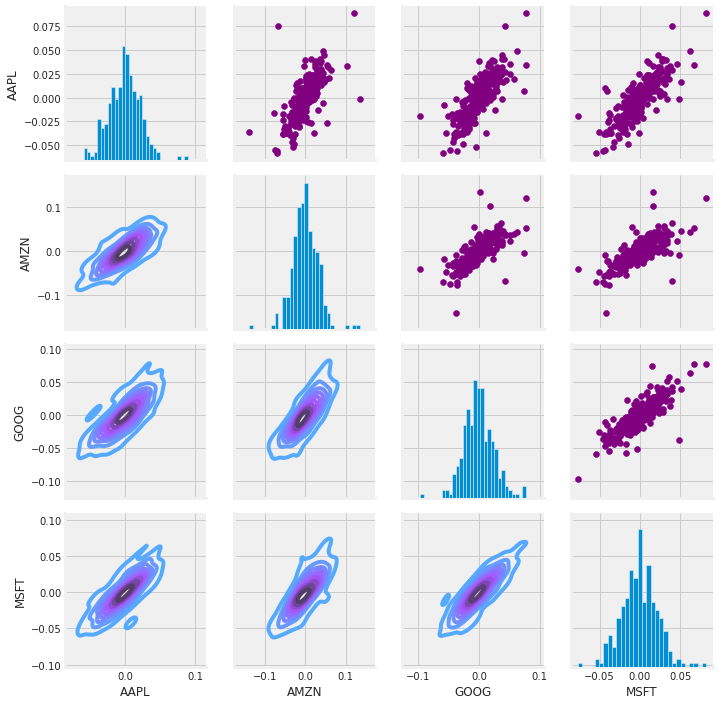
Within the exploratory analysis portion of the notebook that builds intuition for coâmovements before model preparation, the use of sns.PairGrid on the tech_rets data after dropping missing rows constructs a configurable matrix of pairwise plots for each tickerâs daily returns; tech_rets is the returns table derived earlier from the adjusted close price series that came from pdr.get_data_yahoo, so this visualization directly surfaces how percentage moves co-vary across securities rather than raw price levels. Dropping NaNs before creating the grid ensures every plotted pair uses only complete observation rows so the scatter, density and marginal histograms are not distorted by misaligned or missing timestamps. The subsequent mapping calls place simple scatter plots in the upper triangle to reveal pointwise relationships and potential linear alignments, kernel density contours in the lower triangle to show the joint distribution shape and concentration, and histograms on the diagonal to show each assetâs marginal return distribution; together these choices give a more deliberate visual decomposition of correlation structure than the automatic sns.pairplot approach, and they make it easy to spot interesting pairwise behavior (for example the GoogleâAmazon relationship noted earlier) that can inform feature selection and hypothesis testing before the LSTM training pipeline is assembled.
# Set up our figure by naming it returns_fig, call PairPLot on the DataFrame
returns_fig = sns.PairGrid(closing_df)

# Using map_upper we can specify what the upper triangle will look like.
returns_fig.map_upper(plt.scatter,color='purple')

# We can also define the lower triangle in the figure, inclufing the plot type (kde) or the color map (BluePurple)
returns_fig.map_lower(sns.kdeplot,cmap='cool_d')

# Finally we'll define the diagonal as a series of histogram plots of the daily return
returns_fig.map_diag(plt.hist,bins=30)
Output
<seaborn.axisgrid.PairGrid at 0x7f63bb2df7d0>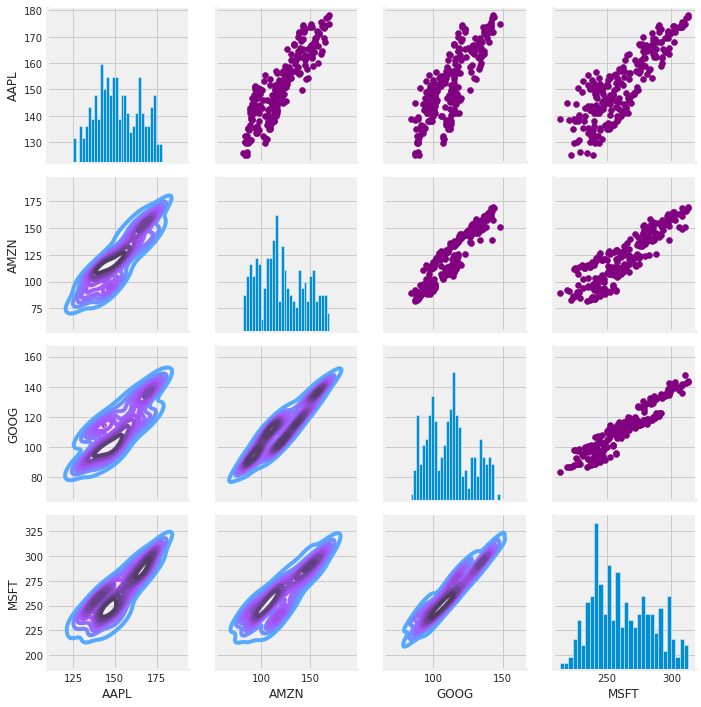
After closing_df was assembled from the adjusted close series pulled with pdr.get_data_yahoo, the notebook creates a seaborn PairGrid around closing_df to lay out a matrix of axes for pairwise visual comparisons across every ticker column. PairGrid itself is just the plotting scaffold; subsequent calls populate the upper triangle with purple scatter plots to reveal pointwise co-movements, populate the lower triangle with kernel density estimates using the cool_d colormap to expose bivariate density and nonâlinear structure, and fill the diagonal with thirtyâbin histograms to show each seriesâ marginal distribution. The purpose in the exploratory stage is to visually diagnose correlations, linear relationships and distributional shapes across the raw price series so that feature choices, scaling decisions, and any assumptions checked by test_cleaned are informed by how the series actually behave. This use of PairGrid follows the same pattern as the earlier PairGrid built on tech_rets.dropna() but differs in the input: the earlier grid inspected return series (and therefore emphasized coâmovement in returns), whereas this grid operates on raw adjusted closing prices and therefore surfaces different relationship and distribution characteristics than a returnâbased pairwise plot or a numeric correlation heatmap or the convenience wrapper pairplot.
Finally, we could also do a correlation plot, to get actual numerical values for the correlation between the stocks’ daily return values. By comparing the closing prices, we see an interesting relationship between Microsoft and Apple.
plt.figure(figsize=(12, 10))

plt.subplot(2, 2, 1)
sns.heatmap(tech_rets.corr(), annot=True, cmap='summer')
plt.title('Correlation of stock return')

plt.subplot(2, 2, 2)
sns.heatmap(closing_df.corr(), annot=True, cmap='summer')
plt.title('Correlation of stock closing price')
Output
Text(0.5, 1.0, ‘Correlation of stock closing price’)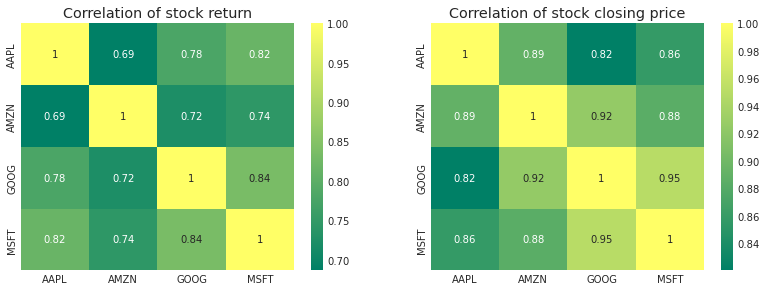
The notebook sets up a Matplotlib figure with an explicit width and height in inches so the plotting canvas is large enough for two annotated correlation heatmaps to be rendered legibly and spaced predictably; this figure becomes the parent container that the subsequent subplot placements attach to. The first subplot then visualizes the correlation matrix computed from tech_rets (the percent-change returns derived earlier from the adjusted close series pulled with pdr.get_data_yahoo), and the second subplot visualizes the correlation matrix computed from closing_df (the joint adjusted close series); using heatmaps with annotations yields precise numeric correlation values to complement the scatter/regression matrix you saw earlier with sns.pairplot and the more customizable PairGrid. Choosing an explicit figure size here ensures the annotation text and color map are readable in the notebook output and makes the resulting images consistent for the downstream verification step test_cleaned, which expects stabilized visual/layout outputs as part of validating the cleaned and prepared time series before modeling.
Just like we suspected in our PairPlot we see here numerically and visually that Microsoft and Amazon had the strongest correlation of daily stock return. It’s also interesting to see that all the technology comapnies are positively correlated.
5. How much value do we put at risk by investing in a particular stock?
There are many ways we can quantify risk, one of the most basic ways using the information we’ve gathered on daily percentage returns is by comparing the expected return with the standard deviation of the daily returns.
rets = tech_rets.dropna()

area = np.pi * 20

plt.figure(figsize=(10, 8))
plt.scatter(rets.mean(), rets.std(), s=area)
plt.xlabel('Expected return')
plt.ylabel('Risk')

for label, x, y in zip(rets.columns, rets.mean(), rets.std()):
    plt.annotate(label, xy=(x, y), xytext=(50, 50), textcoords='offset points', ha='right', va='bottom',
                 arrowprops=dict(arrowstyle='-', color='blue', connectionstyle='arc3,rad=-0.3'))
Output
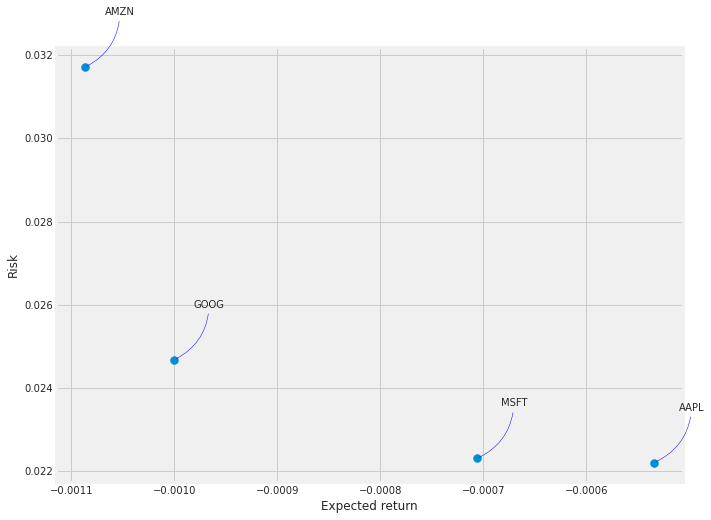
In the exploratory risk-versus-return step the notebook creates rets by calling dropna on tech_rets so that only dates where every ticker has a valid daily return remain. tech_rets itself was derived earlier from the adjusted close series pulled with pdr.get_data_yahoo, and rets is the cleaned table that the subsequent calculations use to compute expected return and risk via mean and std. Using dropna here forces the sample to be aligned across tickers (removing rows with any missing values), which prevents NaNs from propagating into the mean and standard deviation calculations and ensures the scatter of expected return versus risk compares each stock on the same set of trading days. This mirrors the earlier use of tech_rets.dropna() when setting up the PairGrid for pairwise return plots, and rets is then consumed by the plotting and annotation logic that follows.
6. Predicting the closing price stock price of APPLE inc:
# Get the stock quote
df = pdr.get_data_yahoo('AAPL', start='2012-01-01', end=datetime.now())
# Show teh data
df
Output
[stdout]
[*********************100%***********************]  1 of 1 completed
Open High Low Close Adj Close Volume Date 2012-01-03 00:00:00-05:00 14.621429 14.732143 14.607143 14.686786 12.519278 302220800 2012-01-04 00:00:00-05:00 14.642857 14.810000 14.617143 14.765714 12.586559 260022000 2012-01-05 00:00:00-05:00 14.819643 14.948214 14.738214 14.929643 12.726295 271269600 2012-01-06 00:00:00-05:00 14.991786 15.098214 14.972143 15.085714 12.859331 318292800 2012-01-09 00:00:00-05:00 15.196429 15.276786 15.048214 15.061786 12.838936 394024400 ... ... ... ... ... ... ... 2023-01-24 00:00:00-05:00 140.309998 143.160004 140.300003 142.529999 142.529999 66435100 2023-01-25 00:00:00-05:00 140.889999 142.429993 138.809998 141.860001 141.860001 65799300 2023-01-26 00:00:00-05:00 143.169998 144.250000 141.899994 143.960007 143.960007 54105100 2023-01-27 00:00:00-05:00 143.160004 147.229996 143.080002 145.929993 145.929993 70492800 2023-01-30 00:00:00-05:00 144.960007 145.550003 142.850006 143.000000 143.000000 63947600
2787 rows × 6 columns
The notebook assigns to df the historical market DataFrame returned by calling pandas_datareader’s Yahoo fetcher for the AAPL ticker beginning on 2012-01-01 up through the current time. Because yf.pdr_override was applied earlier, the pandas_datareader call is routed through yfinance so the returned DataFrame contains the usual OHLCV columns plus adjusted close with a DatetimeIndex. In the pipeline this step is the raw data ingest for the Apple-specific branch of the end-to-end flow: the DataFrame produced here becomes the source for the exploratory analyses (for example the closing_df and the pairwise return matrices you saw built with PairGrid) and for the modeling preparation that follows (filtering the Close column, converting to a numpy array, and computing the training split length used by the LSTM inputs). Compared to the other data-loading pattern in the notebook that iterated over tech_list with yf.download and concatenated multiple company DataFrames, this fetch is focused on a single ticker and a longer historical window (starting 2012 rather than the one-year window used elsewhere), but it serves the same role of populating a time-indexed table of price and volume fields that downstream cleaning and scaling routines â whose correctness is what test_cleaned will validate â rely on.
plt.figure(figsize=(16,6))
plt.title('Close Price History')
plt.plot(df['Close'])
plt.xlabel('Date', fontsize=18)
plt.ylabel('Close Price USD ($)', fontsize=18)
plt.show()
Output
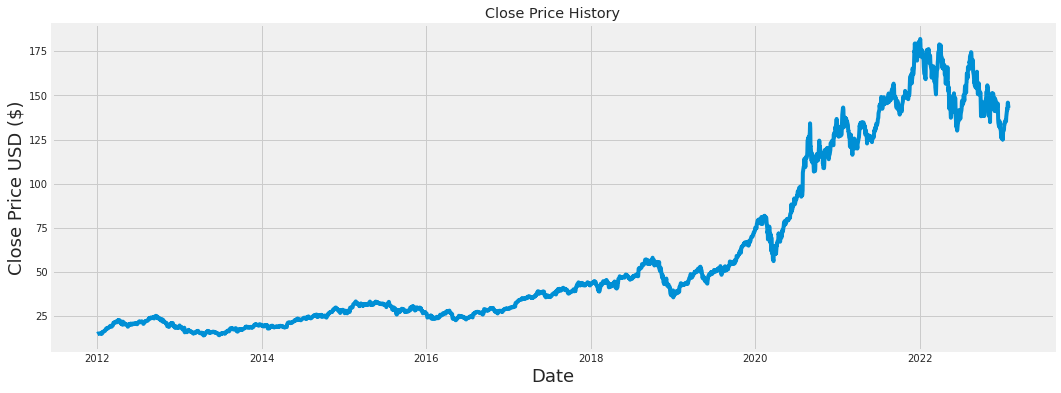
Within the notebookâs end-to-end pipeline for ingesting and inspecting historical market data, this block produces a single, wide time-series visualization of the closing price so analysts and later pipeline steps can visually verify the cleaned price series before modeling. It first creates a Matplotlib canvas with a sixteen-by-six inch figure size to give enough horizontal space for date resolution; it then sets a human-readable title, draws the Close column from df as a continuous line to show price evolution over time, labels the x and y axes to document units and axis meaning, and finally renders the figure to the output. Conceptually this is a straightforward exploratory sanity-check: the plotted Close series originates from the earlier data ingestion step, and the visualization makes trends, regime changes, or obvious data-quality issues visible, which supports the goal of test_cleaned by helping confirm that the cleaned DataFrame contains an ordered, usable closing-price series. This pattern mirrors other plotting uses in the notebookâwhere a larger multi-panel figure is used to show multiple adjusted-close series and a similar sized figure is reused later to compare training, validation, and prediction tracesâwhile here it focuses on a single series for quick visual validation.
# Create a new dataframe with only the 'Close column
data = df.filter(['Close'])
# Convert the dataframe to a numpy array
dataset = data.values
# Get the number of rows to train the model on
training_data_len = int(np.ceil( len(dataset) * .95 ))

training_data_len
Output
2648The notebook creates a new DataFrame named data by selecting only the Close column from df so the pipeline is working with a single univariate price series that the LSTM will predict; this is consistent with how closing_df was assembled earlier for exploratory visualizations. That DataFrame is then converted into a NumPy array called dataset so subsequent numeric operations and indexing are efficient and compatible with the sequence-building and scaler routines that follow. training_data_len is calculated by taking 95% of the dataset length and applying NumPy’s ceiling to produce an integer split point that designates the training window, intentionally reserving the final 5% of observations for validation/testing; that split index is the same one used later when slicing scaled_data into train_data and when creating the train and valid partitions for plotting and evaluation.
# Scale the data
from sklearn.preprocessing import MinMaxScaler

scaler = MinMaxScaler(feature_range=(0,1))
scaled_data = scaler.fit_transform(dataset)

scaled_data
Output
array([[0.00439887],
       [0.00486851],
       [0.00584391],
       ...,
       [0.7735962 ],
       [0.78531794],
       [0.767884  ]])
The notebook imports MinMaxScaler from sklearn.preprocessing in order to normalize the univariate closing price series before the sequence construction and LSTM training steps. Remember that data = df.filter([’Close’]) produced the dataset array earlier; MinMaxScaler is instantiated to map the raw price values into a bounded range from zero to one and then the scaler’s fit_transform method is applied to dataset to produce scaled_data. Conceptually, MinMaxScaler follows the scikitâlearn transformer pattern: it computes and stores the perâfeature minimum and maximum from the training array and uses those statistics to linearly rescale every value, producing an array with the same shape as dataset but with values scaled into the specified range. The scaler object therefore retains the parameters needed to reverse the transformation later (the notebook uses that when it inverse_transforms model predictions back to original price units). Placing this normalization step before slicing scaled_data into the training and testing windows ensures the LSTM sees inputs on a consistent, numerically stable scale, which is why the later code that builds x_train/x_test and computes predictions operates on scaled_data rather than the raw dataset.
# Create the training data set
# Create the scaled training data set
train_data = scaled_data[0:int(training_data_len), :]
# Split the data into x_train and y_train data sets
x_train = []
y_train = []

for i in range(60, len(train_data)):
    x_train.append(train_data[i-60:i, 0])
    y_train.append(train_data[i, 0])
    if i<= 61:
        print(x_train)
        print(y_train)
        print()

# Convert the x_train and y_train to numpy arrays
x_train, y_train = np.array(x_train), np.array(y_train)

# Reshape the data
x_train = np.reshape(x_train, (x_train.shape[0], x_train.shape[1], 1))
# x_train.shape
Output
[stdout]
[array([0.00439887, 0.00486851, 0.00584391, 0.00677256, 0.00663019,
       0.00695107, 0.00680444, 0.00655793, 0.00622217, 0.00726133,
       0.00819848, 0.00790947, 0.0063263 , 0.00783722, 0.00634968,
       0.01192796, 0.01149658, 0.01205972, 0.01327737, 0.01401476,
       0.01395314, 0.01372576, 0.01469479, 0.01560643, 0.01663922,
       0.01830739, 0.02181161, 0.02186474, 0.02381555, 0.02527333,
       0.0227679 , 0.02373267, 0.02371354, 0.02641875, 0.02603411,
       0.026746  , 0.02802528, 0.02873719, 0.03078787, 0.03228178,
       0.03271317, 0.03286405, 0.03030973, 0.02969346, 0.02978484,
       0.03218616, 0.03286193, 0.03431335, 0.03773469, 0.04229932,
       0.04144504, 0.04144716, 0.04474738, 0.04578017, 0.04504489,
       0.04437338, 0.04367423, 0.04599691, 0.04759072, 0.04825798])]
[0.04660893460974819]

[array([0.00439887, 0.00486851, 0.00584391, 0.00677256, 0.00663019,
       0.00695107, 0.00680444, 0.00655793, 0.00622217, 0.00726133,
       0.00819848, 0.00790947, 0.0063263 , 0.00783722, 0.00634968,
       0.01192796, 0.01149658, 0.01205972, 0.01327737, 0.01401476,
       0.01395314, 0.01372576, 0.01469479, 0.01560643, 0.01663922,
       0.01830739, 0.02181161, 0.02186474, 0.02381555, 0.02527333,
       0.0227679 , 0.02373267, 0.02371354, 0.02641875, 0.02603411,
       0.026746  , 0.02802528, 0.02873719, 0.03078787, 0.03228178,
       0.03271317, 0.03286405, 0.03030973, 0.02969346, 0.02978484,
       0.03218616, 0.03286193, 0.03431335, 0.03773469, 0.04229932,
       0.04144504, 0.04144716, 0.04474738, 0.04578017, 0.04504489,
       0.04437338, 0.04367423, 0.04599691, 0.04759072, 0.04825798]), array([0.00486851, 0.00584391, 0.00677256, 0.00663019, 0.00695107,
       0.00680444, 0.00655793, 0.00622217, 0.00726133, 0.00819848,
       0.00790947, 0.0063263 , 0.00783722, 0.00634968, 0.01192796,
       0.01149658, 0.01205972, 0.01327737, 0.01401476, 0.01395314,
       0.01372576, 0.01469479, 0.01560643, 0.01663922, 0.01830739,
       0.02181161, 0.02186474, 0.02381555, 0.02527333, 0.0227679 ,
       0.02373267, 0.02371354, 0.02641875, 0.02603411, 0.026746  ,
       0.02802528, 0.02873719, 0.03078787, 0.03228178, 0.03271317,
       0.03286405, 0.03030973, 0.02969346, 0.02978484, 0.03218616,
       0.03286193, 0.03431335, 0.03773469, 0.04229932, 0.04144504,
       0.04144716, 0.04474738, 0.04578017, 0.04504489, 0.04437338,
       0.04367423, 0.04599691, 0.04759072, 0.04825798, 0.04660893])]
[0.04660893460974819, 0.04441800167645807]
Within the notebookâs modeling pipeline for forecasting closing prices, train_data is created by taking the initial block of the scaled series corresponding to the training portion determined earlier so the LSTM learns only from past data and not from the holdout set; this mirrors how data was previously narrowed to the Close column via data = df.filter([’Close’]) and then scaled with MinMaxScaler, but differs from test_data which begins earlier so its windows can include the final 60 training rows for continuity. The code then constructs x_train as rolling input sequences and y_train as the next-step targets: for each time index starting after the first 60 observations, x_train receives the preceding 60 scaled close values and y_train receives the single scaled value immediately following that window, with the occasional print for the first two iterations to surface the initial example sequences for quick inspection. After collecting these lists, np.array is used to convert them into numeric arrays suitable for Keras, and np.reshape is applied to x_train to add the feature dimension so the shape matches LSTM expectations of (samples, timesteps, features) where features is one because the model is univariate; this sequence construction is the core data-flow step that feeds the LSTM during training and is what test_cleaned ultimately verifies was produced correctly from the cleaned price series.
from keras.models import Sequential
from keras.layers import Dense, LSTM

# Build the LSTM model
model = Sequential()
model.add(LSTM(128, return_sequences=True, input_shape= (x_train.shape[1], 1)))
model.add(LSTM(64, return_sequences=False))
model.add(Dense(25))
model.add(Dense(1))

# Compile the model
model.compile(optimizer='adam', loss='mean_squared_error')

# Train the model
model.fit(x_train, y_train, batch_size=1, epochs=1)
Output
[stderr]
2023-01-31 12:54:26.137995: I tensorflow/core/common_runtime/process_util.cc:146] Creating new thread pool with default inter op setting: 2. Tune using inter_op_parallelism_threads for best performance.
2023-01-31 12:54:26.831521: I tensorflow/compiler/mlir/mlir_graph_optimization_pass.cc:185] None of the MLIR Optimization Passes are enabled (registered 2)
[stdout]
2588/2588 [==============================] - 98s 37ms/step - loss: 0.0013<keras.callbacks.History at 0x7f639802c810>This cell builds, compiles, and briefly trains the LSTM model that sits at the modeling end of the notebookâs end-to-end pipeline, taking the cleaned closingâprice series you prepared earlier as its input. It brings in Kerasâs Sequential API and the LSTM and Dense layer types and uses the Sequential pattern to stack layers: first an LSTM layer with a fairly large hidden state that is configured to emit full sequences so the next recurrent layer can consume temporal outputs; then a second, smaller LSTM that collapses the temporal dimension into a single feature vector; then two Dense layers that first project into an intermediate representation and then reduce to a single scalar prediction for the next closing price. The first LSTMâs input shape is derived from x_trainâs timeâstep dimension (which came from the training data creation loop that used a 60âstep lookback and reshaped to (samples, timesteps, 1)), so the model expects the same windowed, singleâfeature inputs produced by the preprocessing. The model is compiled with the Adam optimizer and mean squared error loss because the task is a regression on price. Finally, the model is fit on x_train and y_train with a very small batch size and just one epoch â effectively a short, functional training run that validates the endâtoâend flow (preprocessing â model input shaping â model training) and produces predictions that the notebook will later insert into the validation frame and visualize as part of the train/validation/predictions plot. This follows the same data preparation pattern shown in the training data creation cell and plugs directly into the visualization code that displays train, valid, and Predictions.
# Create the testing data set
# Create a new array containing scaled values from index 1543 to 2002
test_data = scaled_data[training_data_len - 60: , :]
# Create the data sets x_test and y_test
x_test = []
y_test = dataset[training_data_len:, :]
for i in range(60, len(test_data)):
    x_test.append(test_data[i-60:i, 0])

# Convert the data to a numpy array
x_test = np.array(x_test)

# Reshape the data
x_test = np.reshape(x_test, (x_test.shape[0], x_test.shape[1], 1 ))

# Get the models predicted price values
predictions = model.predict(x_test)
predictions = scaler.inverse_transform(predictions)

# Get the root mean squared error (RMSE)
rmse = np.sqrt(np.mean(((predictions - y_test) ** 2)))
rmse
Output
4.982936594544208This block prepares and evaluates the heldâout portion of the time series so the LSTM can be fed contiguous 60âstep input sequences for prediction and so we can quantify forecast accuracy. It begins by slicing scaled_data to produce the test window that starts sixty steps before the training cutoff so the very first test example can include the required 60âstep history; this mirrors how x_train was built earlier but shifts the source to the postâtraining interval while preserving the lookback context. The notebook then constructs x_test by sliding a 60âstep window across that sliced, scaled test window and collects the corresponding groundâtruth y_test from the original dataset beginning at the training boundary, ensuring y_test is in the original price scale so it lines up with later inverseâscaled predictions. After converting the list of sequences to a numpy array and reshaping it into the threeâdimensional shape the Keras LSTM expects (samples, timesteps, features), the model.predict method generates scaled forecasts, which are then transformed back to actual price units using scaler.inverse_transform so they can be compared directly to y_test. Finally, the code computes the root mean squared error by taking the square root of the mean squared differences between the inverseâscaled predictions and y_test, providing a single numeric measure of outâofâsample forecast performance.
# Plot the data
train = data[:training_data_len]
valid = data[training_data_len:]
valid['Predictions'] = predictions
# Visualize the data
plt.figure(figsize=(16,6))
plt.title('Model')
plt.xlabel('Date', fontsize=18)
plt.ylabel('Close Price USD ($)', fontsize=18)
plt.plot(train['Close'])
plt.plot(valid[['Close', 'Predictions']])
plt.legend(['Train', 'Val', 'Predictions'], loc='lower right')
plt.show()
Output
[stderr]
/opt/conda/lib/python3.7/site-packages/ipykernel_launcher.py:4: SettingWithCopyWarning:
A value is trying to be set on a copy of a slice from a DataFrame.
Try using .loc[row_indexer,col_indexer] = value instead

See the caveats in the documentation: https://pandas.pydata.org/pandas-docs/stable/user_guide/indexing.html#returning-a-view-versus-a-copy
  after removing the cwd from sys.path.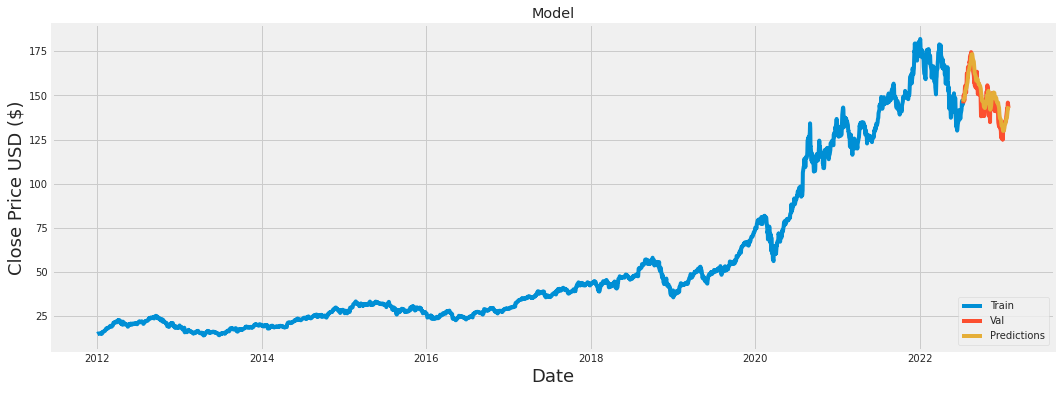
Within the notebookâs end-to-end pipeline that prepared a univariate Close series earlier with data = df.filter([’Close’]), this step splits that cleaned Close DataFrame into a chronological training slice and a chronological validation slice by using the previously computed training_data_len to cut the series into train and valid. The valid DataFrame then gets augmented with the predictions array produced by the LSTM model during the testing-stage processing (the predictions were generated earlier after building test inputs with the sliding-window scaled arrays and calling the model to infer values). The code plots a wide figure and labels axes and title so analysts can visually compare the training history, the actual validation Close values and the modelâs predicted values on the same time axis; specifically the train Close series is plotted alone while the validation area shows both the observed Close series and the Predictions column, and a legend maps those three traces before rendering the figure. Conceptually this is a post-processing and visualization step: unlike the test_data creation that assembled scaled, lagged windows for model input, the train assignment here simply selects contiguous rows from the original Close series for model training/validation bookkeeping and pairs the model outputs with their corresponding timestamps to support the notebookâs goal of test_cleaned â confirming that the cleaned time series and the modelâs forecasts align visually on the heldâout period.
# Show the valid and predicted prices
valid
Output
Close Predictions Date 2022-07-13 00:00:00-04:00 145.490005 146.457565 2022-07-14 00:00:00-04:00 148.470001 146.872879 2022-07-15 00:00:00-04:00 150.169998 147.586197 2022-07-18 00:00:00-04:00 147.070007 148.572937 2022-07-19 00:00:00-04:00 151.000000 148.995255 ... ... ... 2023-01-24 00:00:00-05:00 142.529999 138.565536 2023-01-25 00:00:00-05:00 141.860001 140.022110 2023-01-26 00:00:00-05:00 143.960007 141.225128 2023-01-27 00:00:00-05:00 145.929993 142.469315 2023-01-30 00:00:00-05:00 143.000000 143.833130
139 rows × 2 columns
valid is the chronological validation slice of the cleaned Close series that the notebook uses to compare actual prices against model forecasts. It was created by taking the filtered Close DataFrame named data and cutting it at training_data_len, so it contains the postâtraining dates and their real Close values; after the LSTM produced predictions (via model.predict on x_test, where x_test was built from scaled_data starting at training_data_len minus the lookback window and then inverseâscaled with scaler), those predicted values were attached to valid as a Predictions column. Evaluating valid in the notebook causes Jupyter to render a tabular view of each validation date with its actual Close and the corresponding predicted Close, which is the rowâlevel artifact used for inspection, error calculation, and for the visual comparison plotted later alongside train. Showing valid therefore exposes the cleaned, heldâout records together with their forecasts so test_cleaned can assert that the validation set and the model outputs are present, properly aligned by date, and in the expected numeric form.
Download source code using the button below!
